Cenote Hydra
For your toughest challenges.
- From
- Cenote
- Plan
- Pro
- Best for
- For your toughest challenges
 CenoteDocs
Cenote is an AI chat app. Sign in, chat with AI models, attach files and images, and ask the AI to build websites and code. Websites the AI builds open in a preview panel right next to the chat.
# Ask anything
Build me a landing page for a coffee shop

# Attach files and images
# + button, drag and drop, or paste

# Build and preview
# A card appears in the chat.
# Click it to open the preview panel.

# Pick a model and how hard it thinks
# Effort: Low, Medium, High, Extra, Max
# Type / in the chat box
/new        start a new chat
/preview    open the preview panel
/zip        download your files as a zip
/billing    open plans and pricing
/usage      see your usage
/settings   open settings
/image      create an image (when the plugin is on)
# Keyboard shortcuts
Ctrl K          new chat
Ctrl /          search and commands
Ctrl \          show or hide the side panel
Ctrl Shift ,    settings
Ctrl S          save the file in code view
Enter           send  (Shift+Enter = new line)
Our own models plus Claude, GPT, Gemini and DeepSeek. Compare them on the Models page.
For your toughest challenges.
Fast for quick answers.
Balanced for everyday work.
Faster replies, longer conversations.
Text, images and files in one model.
Built for writing and fixing code.
Cenote is an AI chat app. People sign in, chat with AI models, attach files and images, and ask the AI to build websites and code. Websites the AI builds open in a preview panel next to the chat.
Read the full details in the Privacy Policy.
Type / in the chat box to see actions.
| Action | What it does |
|---|---|
/new | Start a new chat |
/preview | Open the preview panel |
/zip | Download your files as a zip |
/billing | Open plans and pricing |
/usage | See your usage |
/settings | Open settings |
/image | Create an image (when the image plugin is on) |
The model and effort picker is at the bottom right of the chat box. It shows the current model and its description.
| Effort | Usage |
|---|---|
| Low | 0.6x |
| Medium | 1x |
| High | 1.8x |
| Extra | 3x |
| Max | 5x |
Bigger models also use more: weights are 1x, 1.5x, 2x, 3x and 5x depending on the lowest plan that can use the model.
When the AI builds a website or code, a card appears in the chat with a name and size, for example "Website - 3 files". Click it to open the preview panel on the right.
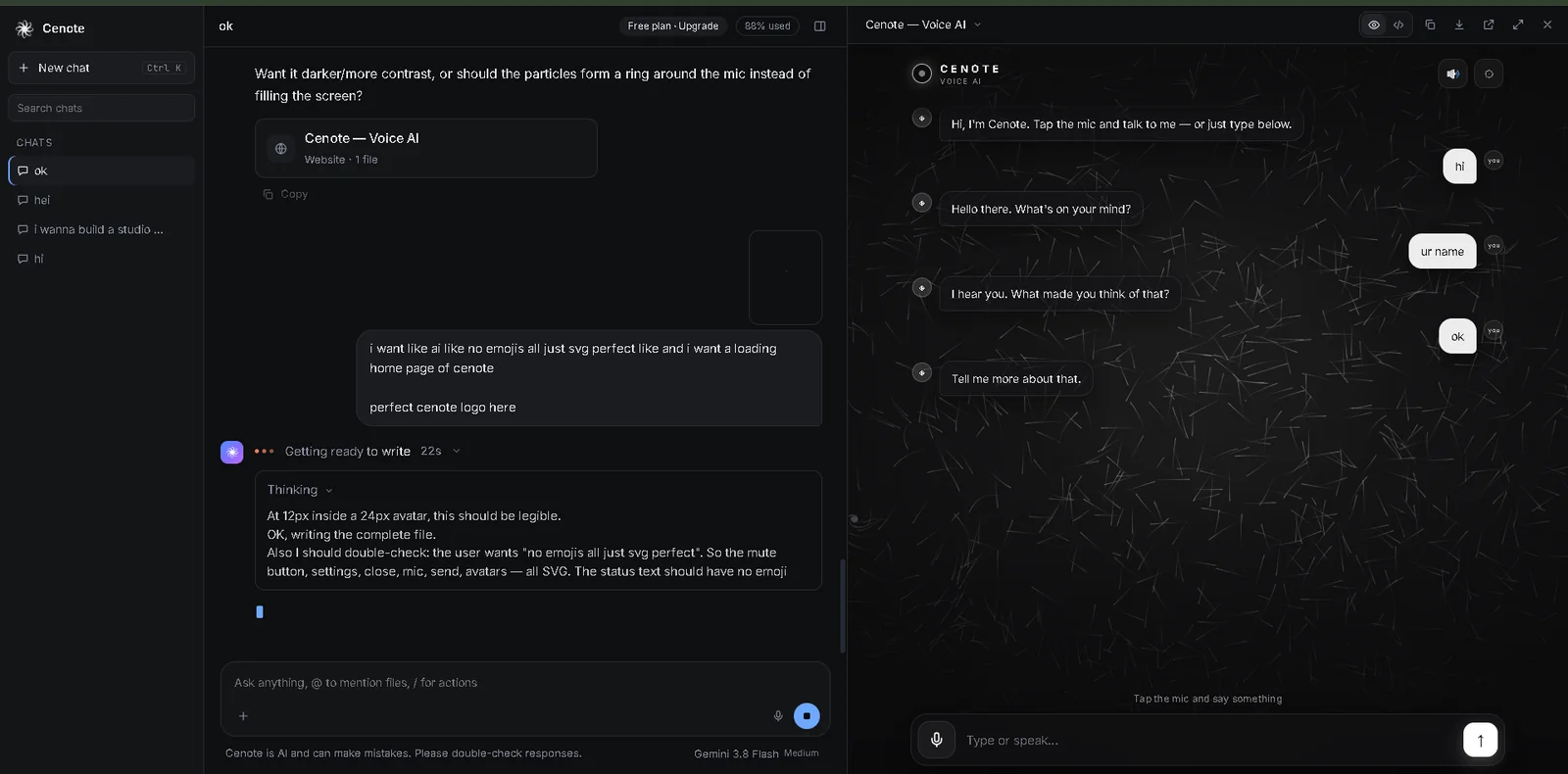
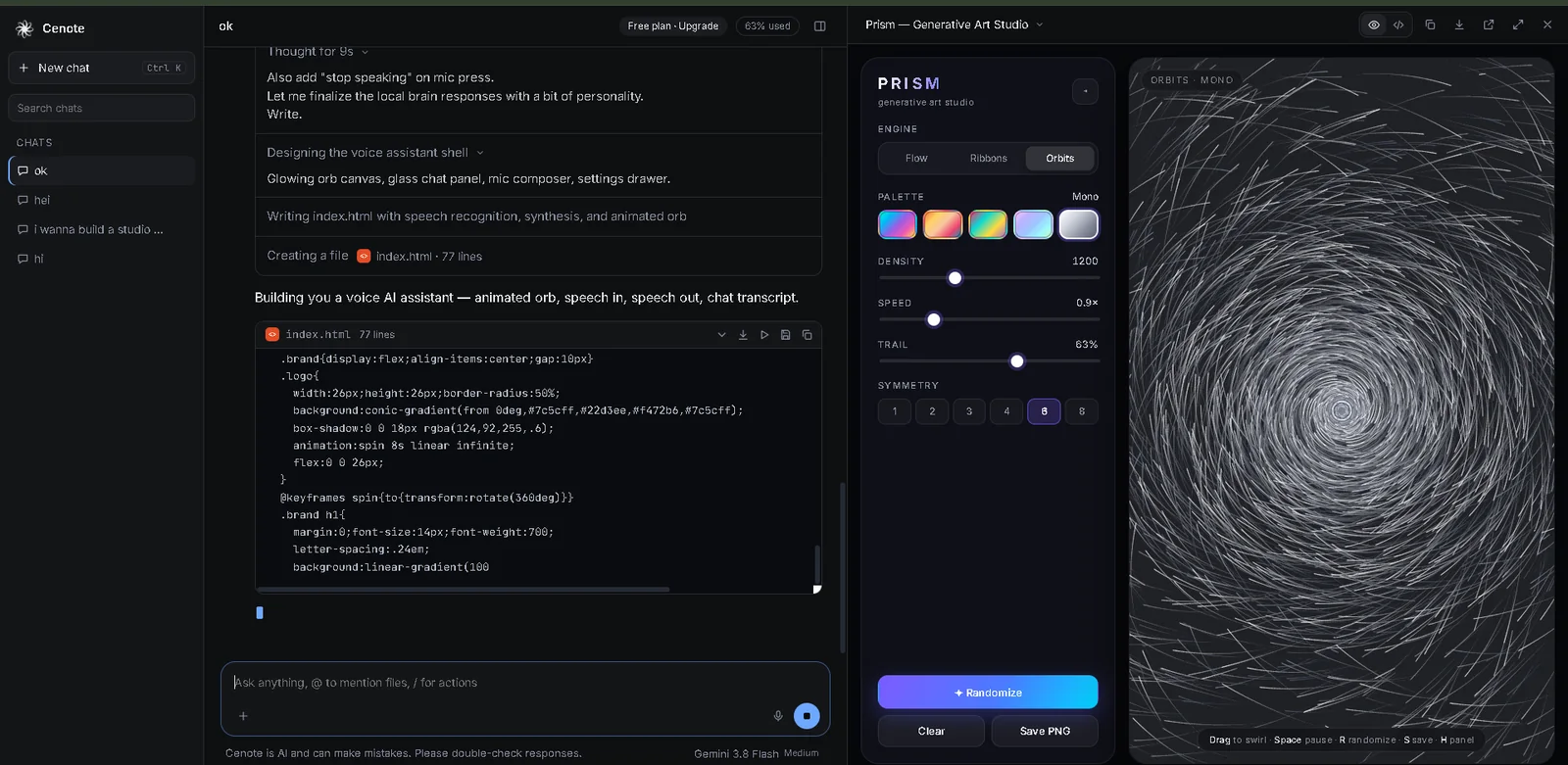
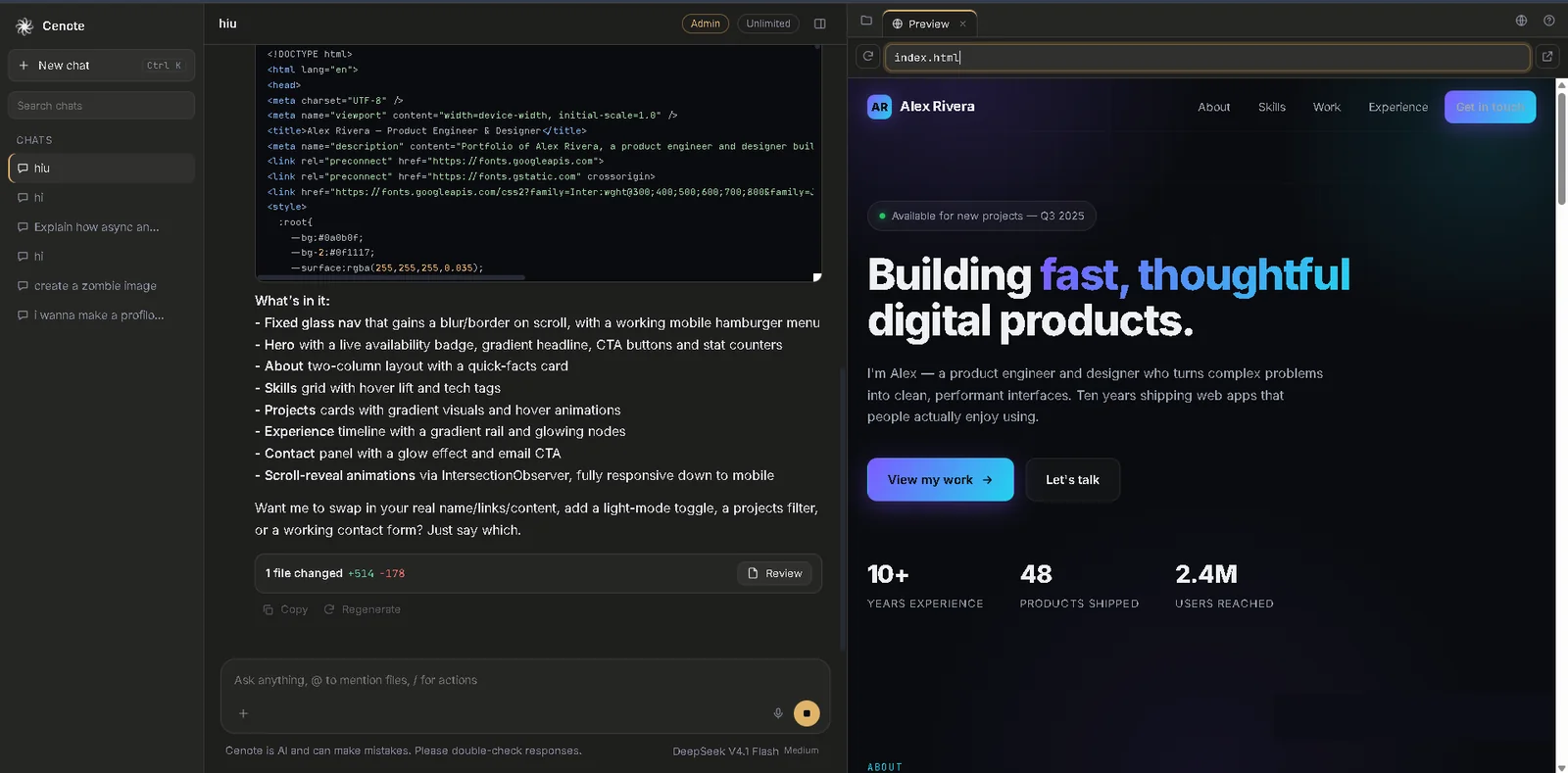
There is no terminal and no separate file explorer. Cenote stores your files for you behind the scenes.
/image./images/generations model.| Plan | Images per hour (default) |
|---|---|
| Free | 2 |
| Plus | 6 |
| Neon | 12 |
| Pro | 30 |
| Pro+ | 60 |
Set it up in Admin, Image plugin: on or off, model, key, base address, size, cost, and images per hour for each plan.
Like Claude, Cenote has two limits.
The 5 hour limit is 20 percent of the weekly number. Usage bars with "% used" and reset times are in Settings, Usage. The top of the screen shows text like "13% used".
Each plan has its own weekly amount, shown on the pricing page. Promo codes add extra units that do not expire. Admin accounts are not limited. When you reach a limit, chat pauses and shows how long until it unlocks.
| Country | Currency and tax |
|---|---|
| India | INR with 18 percent GST included |
| United States | USD, tax added at checkout |
| United Kingdom | GBP, 20 percent VAT included |
| Germany, France, Spain, Italy, Netherlands, Ireland | EUR with VAT |
| Canada, Australia, UAE, Singapore, Japan | Their own currency and tax |
See Plans & pricing.
Open with Ctrl + Shift + , or /settings.
| Page | What is in it |
|---|---|
| General | Name, role, language, plan and billing, welcome setup replay |
| Appearance | Themes (Antigravity, Claude, Midnight, Graphite, Forest, Claude Light), chat font (sans or serif), accent colour, code colours (Dark+, Dracula, Solarized, Mono), code font size |
| Editor | Line numbers, tab size, code font size |
| Chat | Default effort, Enter sends, save and run files from replies, welcome message |
| Models | Default model and the list of models |
| Usage | 5 hour and weekly bars, extra usage, promo code box |
| Plans | Your plan and a link to /billing |
| Account | Clear chats and account actions |
/new, /usage, /billing, /settings, /key, /docs, /shortcuts.| Shortcut | What it does |
|---|---|
| CtrlK | New chat |
| Ctrl/ | Search and commands |
| Ctrl\ | Show or hide the side panel |
| CtrlShift, | Settings |
| CtrlS | Save the file open in the code view |
| Enter | Send (Shift+Enter for a new line; changeable in Settings) |
Each part of Cenote has its own address.
| Address | What it is |
|---|---|
/new | New chat |
/chat/<id> | One chat |
/settings/<page> | Settings pages |
/billing | Plans and pricing |
/admin/<page> | Admin panel |
/privacy | Privacy policy |
/terms | Terms of service |
/docs | Goes to the docs |
Each page has its own link preview image when shared.
Cenote is a small Node.js server (Express) plus one web page. The AI models come from the Boongle API or any other OpenAI-style API you add. You need Node.js 18 or newer.
server.js, package.json, public/ (index.html, logo.png, og images, legal.css, privacy.html, terms.html, img/).npm install..env.example to .env and fill it in.npm start (default port 4673).PUBLIC_URL in a browser.Built with Node.js, Express, nodemailer and dotenv. The page is one HTML file with plain JavaScript and no build step. Fonts are Inter, Source Serif 4 and JetBrains Mono.
| Setting | What it does |
|---|---|
HOST, PORT, PUBLIC_URL | Server address. PUBLIC_URL is used for login. |
BOONGLE_BASE_URL | AI API address |
BOONGLE_KEY_n, AI_MODEL_n, DISPLAY_NAME_n, MIN_PLAN_n, PRICE_IN_n, PRICE_OUT_n | Numbered models, n = 1 to 30 |
FREE_USAGE | Weekly usage units for the Free plan |
SMTP_* | Email sending (sign-in codes, admin codes) |
ADMIN_EMAILS | Comma list of admin emails |
GOOGLE_CLIENT_ID, GOOGLE_CLIENT_SECRET | Google login |
GITHUB_CLIENT_ID, GITHUB_CLIENT_SECRET | GitHub login |
DOCS_URL | Docs link |
CONTACT_EMAIL | Shown on the privacy and terms pages |
API_KEY_URL | Where the key button goes |
IMAGE_MODEL, IMAGE_KEY, IMAGE_BASE | Image plugin (optional) |
Only emails in ADMIN_EMAILS can open /admin. They also type a code sent by email.
| Page | What you can do |
|---|---|
| Overview | Users, daily users, usage charts, projects |
| Users | See users, change plans, reset usage |
| Plans | Edit each plan: name, short description, price, weekly usage, feature list, "Recommended" |
| Subscriptions | Give a plan to an email for some days, remove plans |
| Models | Edit models (name, prices, lowest plan). Add models with their own key and optional base address. Delete added models |
| Image plugin | See Image plugin above |
| Announcements | Post a title, message and optional button with a link. Users see them under the bell |
| Requests | Upgrade requests from the billing page: Approve or Reject |
| Promo codes | Create and delete codes that add extra usage |
https:// (no script links).The page needs the server. Run npm start and open PUBLIC_URL.
Add BOONGLE_KEY_1, AI_MODEL_1 and DISPLAY_NAME_1 to .env, or add a model in Admin, Models. Restart after changing .env.
Your plan is lower than that model's MIN_PLAN. Change it in Admin, Models, or give the user a plan in Admin, Subscriptions.
A proxy is buffering. Cenote already sends the no-buffering header for nginx. Check Cloudflare or other proxies in front of the server.
The callback must be PUBLIC_URL/auth/<provider>/callback, and PUBLIC_URL must match the address in the browser.
Check the SMTP_* settings and that your address is in ADMIN_EMAILS.
Fill in the model and key in Admin, Image plugin (or IMAGE_MODEL and IMAGE_KEY in .env).
Rates are fixed in server.js (the GEO table). Edit them there.
Each page uses its own og image in public/. Make sure those files were copied and PUBLIC_URL is your real address.
The Privacy Policy and Terms of Service are written to match what Cenote does. EU and UK readers can also see the EU & UK notice. Questions? Email support@cenote.bond.